

 Premium
What's new in Microsoft Authenticator 4.2.0
Big improvements coming your way!
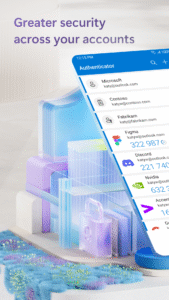
-Now supporting work, school and personal Microsoft accounts, as well as 3rd party accounts (Google, Facebook, etc)
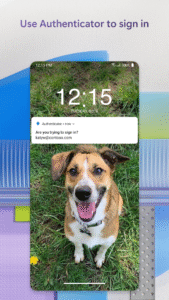
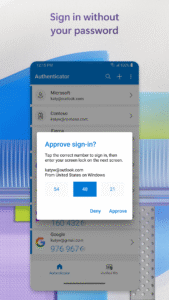
-Approve sign-ins directly from notifications for Microsoft work and personal accounts
-Ability to approve sign-ins without launching the app, even for PIN-enabled accounts
-Compatible with Android Wear devices
-Integrated QR code scanner
-Workplace join updates
-Conditional access
Stay tuned for even more updates coming over the next few months!
About Microsoft Authenticator 4.2.0
Your IT administrator may have recommended you to use the Microsoft Azure Authenticator to sign-in to access your work resources. This application provides following functionality:
Premium
1. Multi-Factor Authentication: This allows you to secure your accounts with two-step verification. With two-step verification, you sign in using something you know (your password) and something you have (your mobile device).
The app supports Azure Multi-Factor Authentication and other software tokens such as those used with Microsoft and Google accounts.
When used with an account protected by Azure Multi-Factor Authentication, you can either receive a push notification or use the verification code displayed for that account in the app.
When used with other accounts, you’ll have to use the verification code displayed for that account in the app.
Getting Started:
The easiest way to add an account is to scan a QR code presented by a system’s two-step verification enrollment page. Alternatively, you can enter an activation code and URL presented for Azure Multi-Factor Authentication enrollment or enter an account name and secret key presented by other systems. Multiple accounts and tokens are supported.
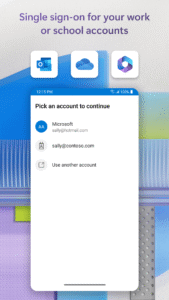
2. Work Account: This allows you to turn your Android phone or tablet into a trusted device and provide Single Sign-On (SSO) to company applications. Your IT administrator may require you to add a work account in order to access company resources. SSO lets you sign in once and automatically avail of signing in across all applications your company has made available to you.
How to uninstall the app?
Azure Authenticator is configured as a device administrator which must be disabled before the app can be uninstalled. To do so, go to Settings > Security > Device administrators > uncheck “Azure Authenticator”. After that, you should be able to uninstall it as usual.
Can’t find the Multi-Factor Authentication app?
This app replaces the Multi-Factor Authentication app by PhoneFactor.
Download Microsoft Authenticator 4.2.0
This release may come in several variants. Consult our handy FAQ to see which download is right for you.

Version:6.2609.6214
Uploaded:September 23, 2026 at 12:21AM UTC
File size:56.26 MB
Downloads:1,303
Version:6.2608.5658
Uploaded:September 11, 2026 at 10:21PM UTC
File size:55.90 MB
Downloads:840
Version:6.2607.4697
Uploaded:July 29, 2026 at 12:18AM UTC
File size:55.65 MB
Downloads:1,017
Version:6.2606.4246
Uploaded:July 2, 2026 at 7:01AM UTC
File size:54.89 MB
Downloads:1,209
Version:6.2606.3817
Uploaded:June 15, 2026 at 7:32AM UTC
File size:54.74 MB
Downloads:717
Version:6.2606.3713
Uploaded:June 5, 2026 at 6:29AM UTC
File size:59.71 MB
Downloads:312
Version:6.2605.3042
Uploaded:May 19, 2026 at 10:25PM UTC
File size:53.60 MB
Downloads:763
Version:6.2605.2973
Uploaded:May 16, 2026 at 10:25PM UTC
File size:53.33 MB
Downloads:429
Version:6.2604.2550
Uploaded:May 3, 2026 at 4:52PM UTC
File size:100.70 MB
Downloads:759
Version:6.2603.2041
Uploaded:April 13, 2026 at 9:04PM UTC
File size:53.33 MB
Downloads:519
Follow APK Mirror


