

 Premium
What's new in Microsoft Authenticator 6.2003.1678
We're always working on new features, bug fixes, and performance improvements. Make sure you stay updated with the latest version for the best authentication experience.
About Microsoft Authenticator 6.2003.1678
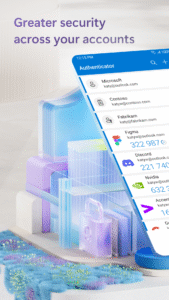
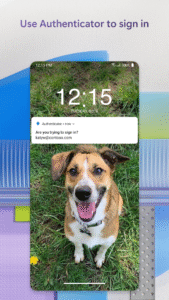
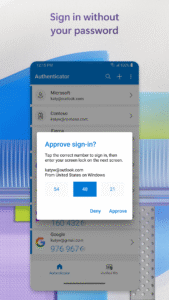
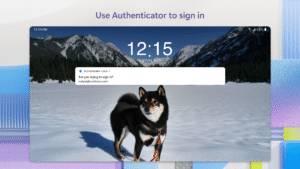
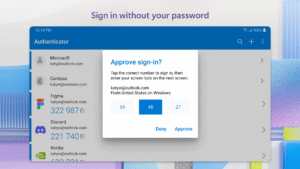
Two factor authentication (TFA) is easy, convenient, and secure when you use Microsoft Authenticator. Use your phone, not your password, to log into your Microsoft account. Just enter your username, then approve the notification sent to your phone. Your fingerprint, face ID, or PIN will provide a second layer of security in this two step verification process. After you’ve signed in with two factor authentication (TFA), you’ll have access to all your Microsoft products and services, such as Outlook, OneDrive, Office, and more.
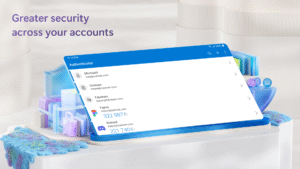
Microsoft Authenticator also supports multi factor authentication (MFA) even if you still use a password, by providing a second layer of security after you type your password. When logging in with two factor authentication (TFA), you’ll enter your password, and then you’ll be asked for an additional way to prove it’s really you. Either approve the notification sent to the Microsoft Authenticator, or enter the one time password (OTP) generated by the app. The one time passwords (OTP codes) have a 30 second timer counting down. This timer is so you never have to use the same time based one time password (TOTP) twice and you don’t have to remember the number. The one time password (OTP) doesn’t require you to be connected to a network, and it won’t drain your battery.
You can add multiple accounts to your app, including non-Microsoft accounts like LinkedIn, Github, Amazon, Dropbox, Google, Facebook, and more. Since the app supports the industry standard for time based one time passwords (TOTP), you can secure all your online accounts. Simply enable two factor authentication (TFA) on all your accounts. Then, when you sign in, you’ll provide your username and password as usual. Finally, you’ll enter the one time password (OTP) provided by the Microsoft Authenticator app.
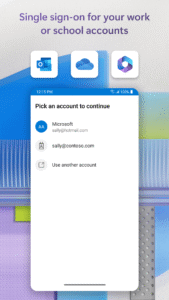
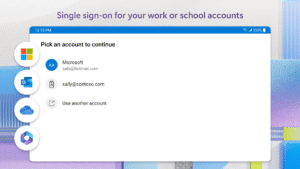
Sometimes your work or school might ask you to install the Microsoft Authenticator when accessing certain files, emails, or apps. You will need to register your device to your organization through the app and add your work or school account. Microsoft Authenticator also supports cert-based authentication by issuing a certificate on your device. This will let your organization know that the sign-in request is coming from a trusted device and help you seamlessly and securely access additional Microsoft apps and services without needing to log into each. Because Microsoft Authenticator supports single sign-on, once you have proven your identity once, you will not need to log in again to other Microsoft apps on your device.
Enroll in our beta program! Follow this link for an early preview of our latest updates: play.google.com/apps/testing/com.azure.authenticator
Download Microsoft Authenticator 6.2003.1678
This release may come in several variants. Consult our handy FAQ to see which download is right for you.

Version:6.2608.5658
Uploaded:September 1, 2026 at 1:36AM UTC
File size:55.90 MB
Downloads:229
Version:6.2607.4697
Uploaded:July 29, 2026 at 12:18AM UTC
File size:55.65 MB
Downloads:977
Version:6.2606.4246
Uploaded:July 2, 2026 at 7:01AM UTC
File size:54.89 MB
Downloads:1,150
Version:6.2606.3817
Uploaded:June 15, 2026 at 7:32AM UTC
File size:54.74 MB
Downloads:703
Version:6.2606.3713
Uploaded:June 5, 2026 at 6:29AM UTC
File size:59.71 MB
Downloads:304
Version:6.2605.3042
Uploaded:May 19, 2026 at 10:25PM UTC
File size:53.60 MB
Downloads:727
Version:6.2605.2973
Uploaded:May 16, 2026 at 10:25PM UTC
File size:53.33 MB
Downloads:414
Version:6.2604.2550
Uploaded:May 3, 2026 at 4:52PM UTC
File size:100.70 MB
Downloads:730
Version:6.2603.2041
Uploaded:April 13, 2026 at 9:04PM UTC
File size:53.33 MB
Downloads:496
Version:6.2603.1485
Uploaded:March 24, 2026 at 4:59PM UTC
File size:53.23 MB
Downloads:733
Follow APK Mirror


