

Refactor your thinking
 Premium













- 💡 Introduction
- 🔮 Features
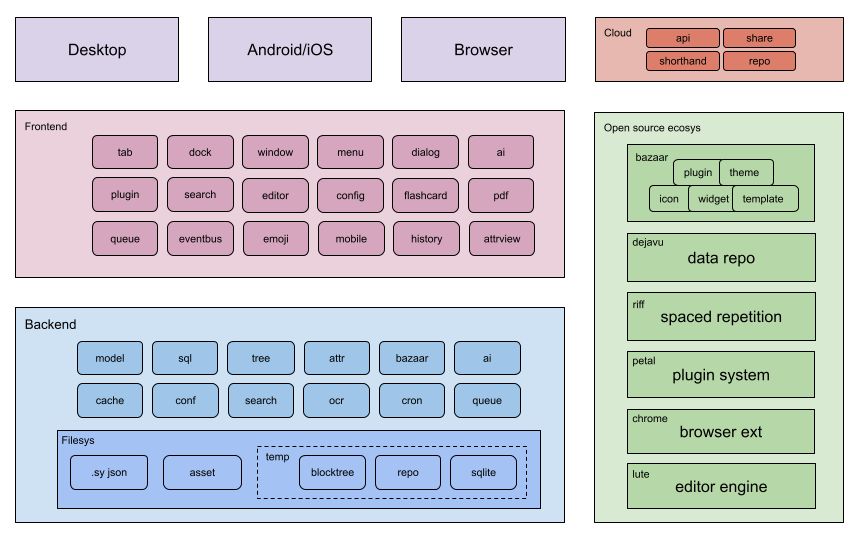
- 🏗️ Architecture and Ecosystem
- 🌟 Star History
- 🗺️ Roadmap
- 🚀 Download Setup
- ⌨️ Command-line Interface
- 🏘️ Community
- 🛠️ Development Guide
- ❓ FAQ
- How does SiYuan store data?
- Does it support data synchronization through a third-party sync disk?
- Is SiYuan open source?
- How to upgrade to a new version?
- What if some blocks (such as paragraph blocks in list items) cannot find the block icon?
- What should I do if the data repo key is lost?
- Do I need to pay for it?
- 🙏 Acknowledgement
SiYuan is a privacy-first personal knowledge management system, supporting fine-grained block-level reference and Markdown WYSIWYG.
Welcome to SiYuan English Discussion Forum to learn more.
Online user guide: English
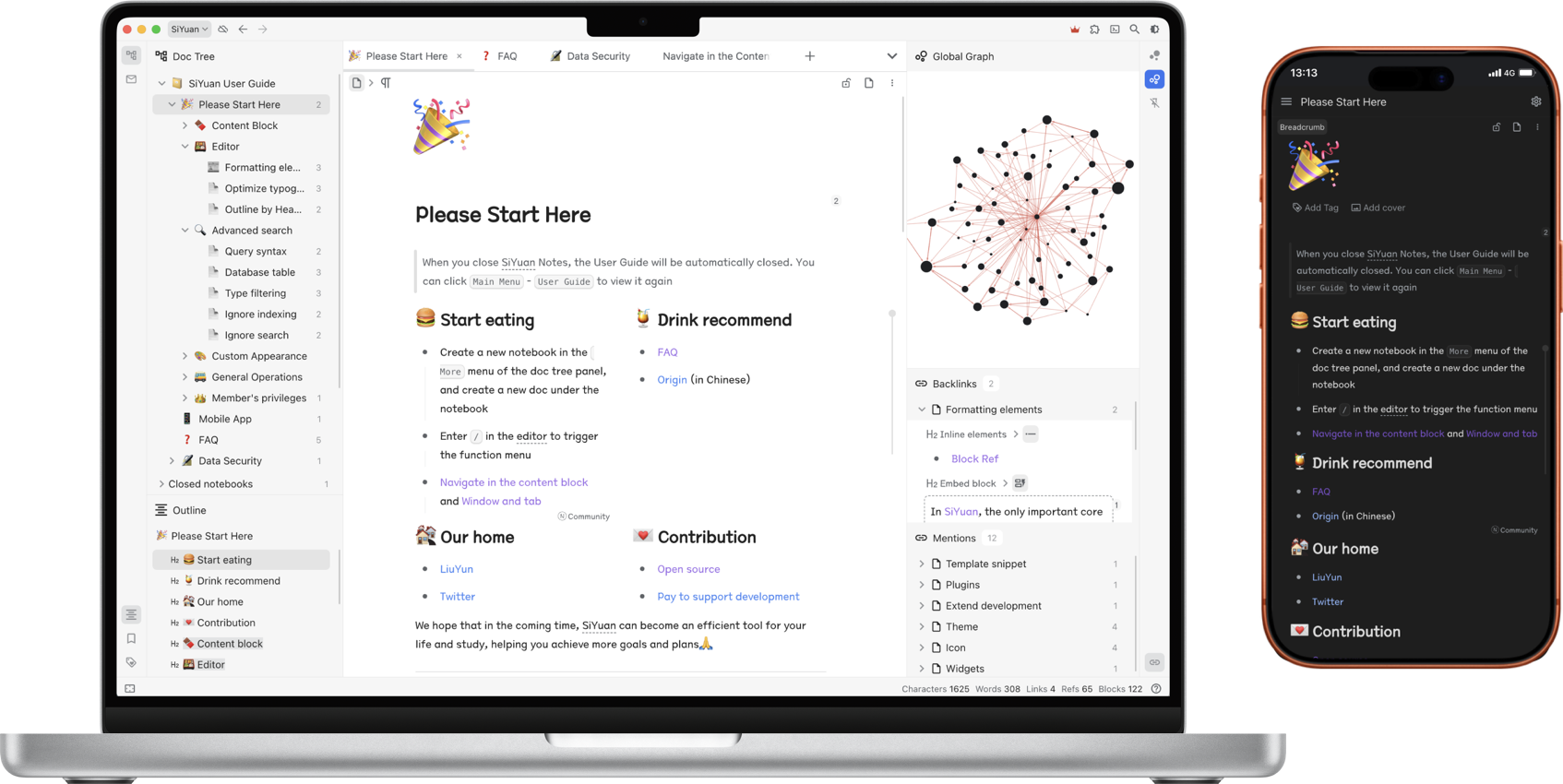

Most features are free, even for commercial use.
- Content block
- Block-level reference and two-way links
- Custom attributes
- SQL query embed
- Protocol
siyuan://
- Editor
- Block-style
- Markdown WYSIWYG
- List outline
- Block zoom-in
- Million-word large document editing
- Mathematical formulas, charts, flowcharts, Gantt charts, timing charts, staves, etc.
- Web clipping
- PDF Annotation link
- Export
- Block ref and embed
- Standard Markdown with assets
- PDF, Word and HTML
- Copy to WeChat MP, Zhihu and Yuque
- Database
- Table view
- Flashcard spaced repetition
- AI writing and Q/A chat via OpenAI API
- Tesseract OCR
- Multi-tab, drag and drop to split screen
- Template snippet
- JavaScript/CSS snippet
- Android/iOS/HarmonyOS App
- Docker deployment
- API
- Community marketplace
Some features are only available to paid members, for more details please refer to Pricing.
| Project | Description | Forks | Stars |
|---|---|---|---|
| lute | Editor engine |  |
 |
| chrome | Chrome/Edge extension |  |
 |
| bazaar | Community marketplace |  |
 |
| dejavu | Data repo |  |
 |
| petal | Plugin API |  |
 |
| android | Android App |  |
 |
| ios | iOS App |  |
 |
| harmony | HarmonyOS App |  |
 |
| riff | Spaced repetition |  |
 |
It is recommended to give priority to installing through the application market on desktop and mobile, so that you can upgrade the version with one click in the future.
Mobile:
Desktop:


Docker Deployment
The easiest way to serve SiYuan on a server is to deploy it through Docker.
- Image name
b3log/siyuan - Image URL
The overall program is located under /opt/siyuan/, which is basically the structure under the resources folder of the Electron installation package:
- appearance: icon, theme, languages
- guide: user guide document
- stage: interface and static resources
- kernel: kernel program
The entry point is set when building the Docker image: ENTRYPOINT ["/opt/siyuan/entrypoint.sh"]. This script allows changing the PUID and PGID of the user that will run inside the container. This is especially relevant to solve permission issues when mounting directories from the host. The PUID (User ID) and PGID (Group ID) can be passed as environment variables, making it easier to ensure correct permissions when accessing host-mounted directories.
Use the following parameters when running the container with docker run b3log/siyuan:
Note: Since v3.7.0, the
servesubcommand must be passed explicitly (e.g.docker run b3log/siyuan serve --workspace=...). Rundocker run --rm b3log/siyuan serve --helpto see all serving options.
--workspace: Specifies the workspace folder path, mounted to the container via-von the host--accessAuthCode: Specifies the lock screen password
More parameters can be found using --help. Here’s an example of a startup command with the new environment variables:
docker run -d -v workspace_dir_host:workspace_dir_container -p 6806:6806 -e PUID=1001 -e PGID=1002 b3log/siyuan serve --workspace=workspace_dir_container --accessAuthCode=xxx
PUID: Custom user ID (optional, defaults to1000if not provided)PGID: Custom group ID (optional, defaults to1000if not provided)workspace_dir_host: The workspace folder path on the hostworkspace_dir_container: The path of the workspace folder in the container, as specified in--workspace- Alternatively, it's possible to set the path via the
SIYUAN_WORKSPACE_PATHenv variable. The commandline will always have the priority, if both are set
- Alternatively, it's possible to set the path via the
accessAuthCode: Lock screen password (please be sure to modify, otherwise anyone can access your data)- Alternatively, it's possible to set the lock screen password via the
SIYUAN_ACCESS_AUTH_CODEenv variable. The commandline will always have the priority, if both are set - To disable the lock screen password set the env variable
SIYUAN_ACCESS_AUTH_CODE_BYPASS=true
- Alternatively, it's possible to set the lock screen password via the
SIYUAN_LANG: Interface language (optional, defaults toenif unset in Docker). Accepts BCP 47 tags likezh-CN/zh-TW/en/ja/pt-BR; legacy underscore values likezh_CN/en_USare also accepted for backward compatibility. Omit it if you want the language chosen in Settings to persist across restarts; if set, it is applied on every startup and overrides the saved setting- Alternatively, use the
--langcommand-line parameter. If both are set, the command-line takes priority
- Alternatively, use the
To simplify things, it is recommended to configure the workspace folder path to be consistent on the host and container, such as having both workspace_dir_host and workspace_dir_container configured as /siyuan/workspace. The corresponding startup command would be:
docker run -d -v /siyuan/workspace:/siyuan/workspace -p 6806:6806 -e PUID=1001 -e PGID=1002 b3log/siyuan serve --workspace=/siyuan/workspace/ --accessAuthCode=xxx
For users running SiYuan with Docker Compose, the environment variables PUID and PGID can be passed to customize the user and group IDs. Here's an example of a Docker Compose configuration:
version: "3.9" services: main: image: b3log/siyuan command: ['serve', '--workspace=/siyuan/workspace/', '--accessAuthCode=${AuthCode}'] ports: - 6806:6806 volumes: - /siyuan/workspace:/siyuan/workspace restart: unless-stopped environment: - TZ=${YOUR_TIME_ZONE} # A list of time zone identifiers can be found at en.wikipedia.org/wiki/List_of_tz_database_time_zones - PUID=${YOUR_USER_PUID} # Customize user ID - PGID=${YOUR_USER_PGID} # Customize group ID
In this setup:
PUIDandPGIDare set dynamically and passed to the container- If these variables are not provided, the default
1000will be used
By specifying PUID and PGID in the environment, you avoid the need to explicitly set the user directive (user: '1000:1000') in the compose file. The container will dynamically adjust the user and group based on these environment variables at startup.
In the image, the entrypoint.sh script ensures the creation of the siyuan user and group with the specified PUID and PGID. Therefore, when the host creates a workspace folder, pay attention to setting the user and group ownership of the folder to match the PUID and PGID you plan to use. For example:
chown -R 1001:1002 /siyuan/workspace
If you use custom PUID and PGID values, the entrypoint script will ensure that the correct user and group are created inside the container, and ownership of mounted volumes will be adjusted accordingly. There’s no need to manually pass -u in docker run or docker-compose as the environment variables will handle the customization.
Hidden port
Use an NGINX reverse proxy to hide port 6806. Please note:
- Configure the WebSocket reverse proxy for
/ws
- Be sure to confirm the correctness of the mounted volume, otherwise the data will be lost after the container is deleted
- Do not use URL rewriting for redirection, otherwise there may be problems with authentication, it is recommended to configure a reverse proxy
- If you encounter permission issues, verify that the
PUIDandPGIDenvironment variables match the ownership of the mounted directories on your host system
- Does not support desktop and mobile application connections, only supports use on browsers
- Export to PDF, HTML and Word formats is not supported
- Import Markdown file is not supported
Unraid Deployment
Note: First run chown -R 1000:1000 /mnt/user/appdata/siyuan in the terminal
Template reference:
Web UI: 6806 Container Port: 6806 Container Path: /home/siyuan Host path: /mnt/user/appdata/siyuan PUID: 1000 PGID: 1000 Publish parameters: serve --accessAuthCode=******(Lock screen password) TrueNAS Deployment
Note: First, run the commands below in the TrueNAS Shell. Please update Pool_1/Apps_Data/siyuan to match your dataset path.
zfs create Pool_1/Apps_Data/siyuan chown -R 1001:1002 /mnt/Pool_1/Apps_Data/siyuan chmod 755 /mnt/Pool_1/Apps_Data/siyuan
Navigate to Apps - DiscoverApps - More Options (on top right, besides Custom App) - Install via YAML
Template reference:
services: siyuan: image: b3log/siyuan container_name: siyuan command: ['serve', '--workspace=/siyuan/workspace/', '--accessAuthCode=2222'] ports: - 6806:6806 volumes: - /mnt/Pool_1/Apps_Data/siyuan:/siyuan/workspace # Adjust to your dataset path restart: unless-stopped environment: - TZ=America/New_York # Replace with your timezone if needed - PUID=1001 - PGID=1002
We release insider preview before major updates, please visit https://github.com/siyuan-note/insider.
The built-in CLI provides direct access to workspace data — no running server required.
<div class="highlight highlight-source-shell notranslate position-relative overflow-auto" dir="auto" data-snippet-clipboard-copy-content="# List all notebooks siyuan notebook list -w ~/SiYuan # Full-text search with JSON output siyuan search "keyword" -w ~/SiYuan -f json # Search inside asset files (PDF/Word/Excel/txt etc.) siyuan search "phrase" --asset -w ~/SiYuan siyuan search "phrase" --asset --ext pdf --ext docx -w ~/SiYuan # Export a document as Markdown siyuan export md --id -w ~/SiYuan">
# List all notebooks siyuan notebook list -w ~/SiYuan # Full-text search with JSON output siyuan search "keyword" -w ~/SiYuan -f json # Search inside asset files (PDF/Word/Excel/txt etc.) siyuan search "phrase" --asset -w ~/SiYuan siyuan search "phrase" --asset --ext pdf --ext docx -w ~/SiYuan # Export a document as Markdown siyuan export md --id <block-id> -w ~/SiYuan